How-to · One long page
Save a webpage as PDF without page breaks.
Chrome's Print to PDF splits a page into paper-sized sheets, such as A4 or Letter. To get one long PDF page, with nothing split in the middle, use PageCarry and choose Continuous.
Steps
- Add PageCarry to Chrome.
- Open the page and let it finish loading.
- Click the PageCarry icon and choose Continuous as the page size.
- Choose Article for just the content, or Full page.
- Click Save as PDF. You get one tall page in your Downloads folder (see the length note below).
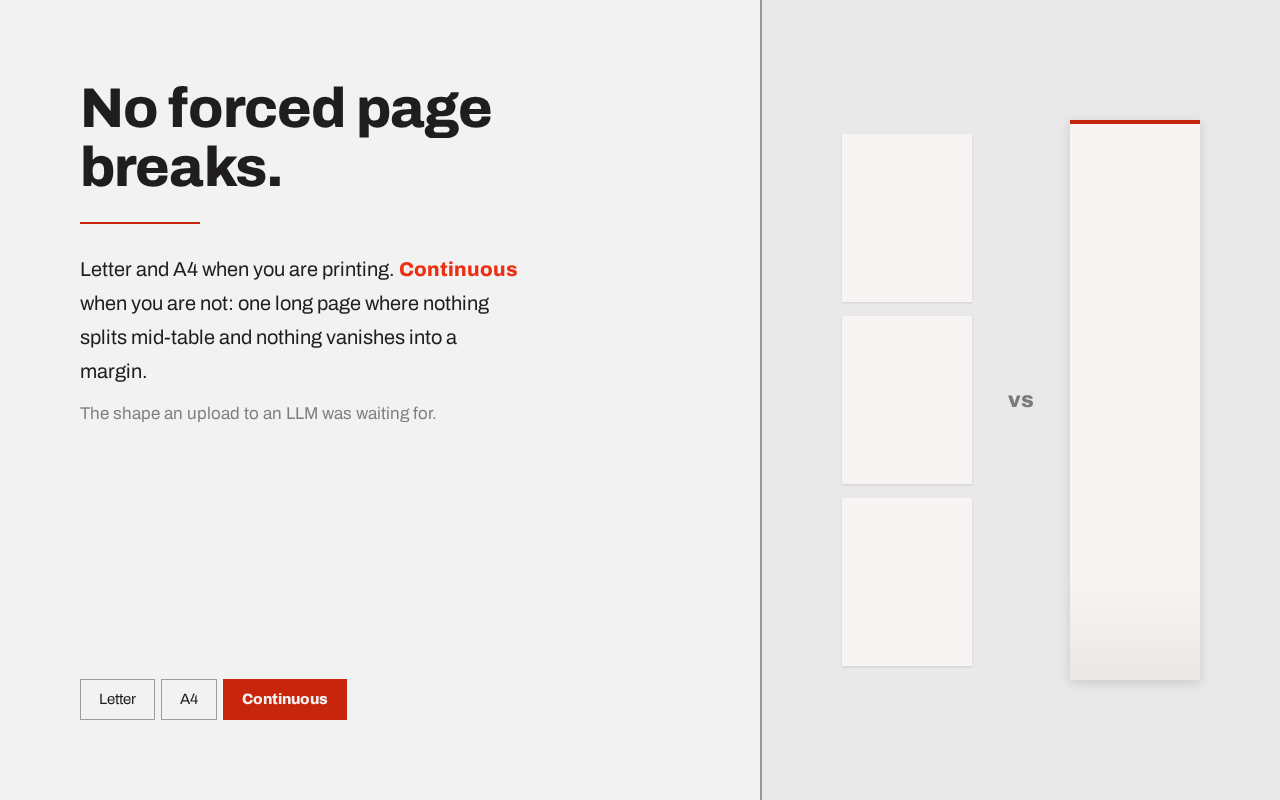
Why one long page?
- No cuts in the middle. Tables, code blocks and images are not split across paper-sized sheets.
- Easy on a phone. You just scroll, like on the original website.
- Good for AI tools. A single page with real text is easy to upload to ChatGPT, Claude or other LLM tools.
When you need to print, switch back to A4 or Letter. PageCarry remembers your choice.
What else you get
- Real, selectable and searchable text — not a picture of the page.
- Working links, and headings become PDF bookmarks.
- Made on your device: page content is not uploaded, no account, no watermark.
Common questions
Is there a length limit for one long page?
PageCarry has no limit of its own. The PDF format allows a page up to 200 inches (about 5 meters) tall, so a very long article continues on a second long page. Very long pages make larger files, and some PDF viewers open them more slowly.
Can I save only part of the page?
Yes. Select the text first and choose Selection, or click away parts you don't need with the element remover.